
Tutorial on Creating Geometric Content#
First Step#
To complete these exercises, launch ipython with the following option:
ipython --gui=qt
Warning If you don’t use this option, you’ll likely have problems displaying your results with the viewer.
Import all plantgl modules:
from openalea.plantgl.all import *
Exercises#
Hello World#
Use the help on the
Boxprimitive. What are the possible constructor arguments?Consult the plantgl documentation on the web.
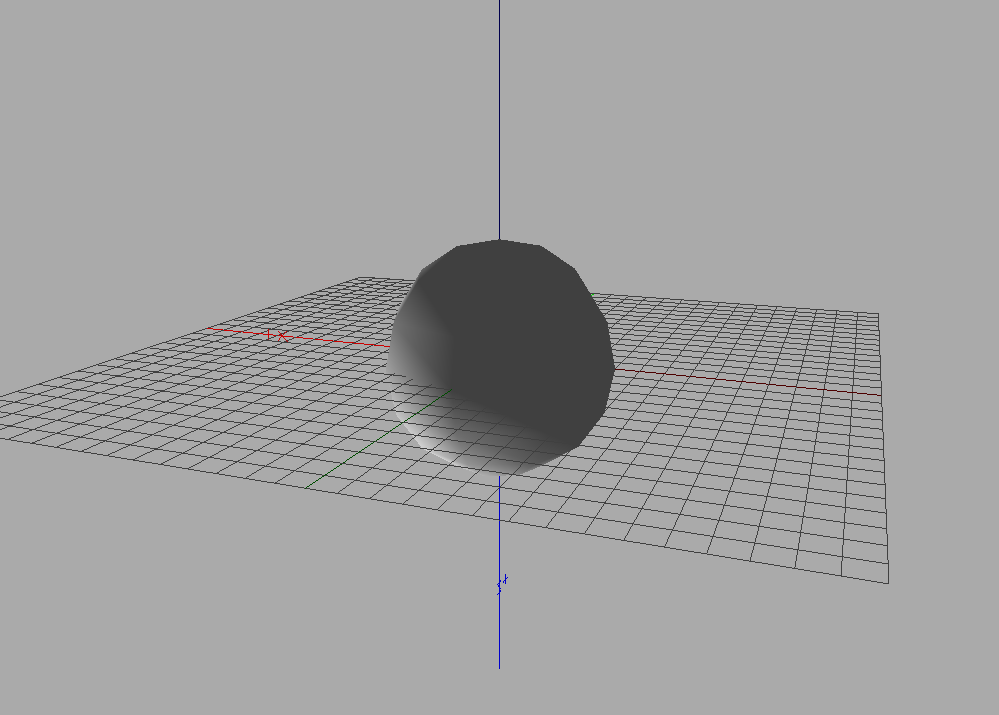
Create a
Spherewith radius 5.Display it in the
Viewer.
Your result should look like:
 { width=”40%”, align=”center” }
Note In the viewer, you can change the camera angle by dragging, change the light direction by holding
ctrland dragging, and zoom in/out with the scroll wheel.
Material#
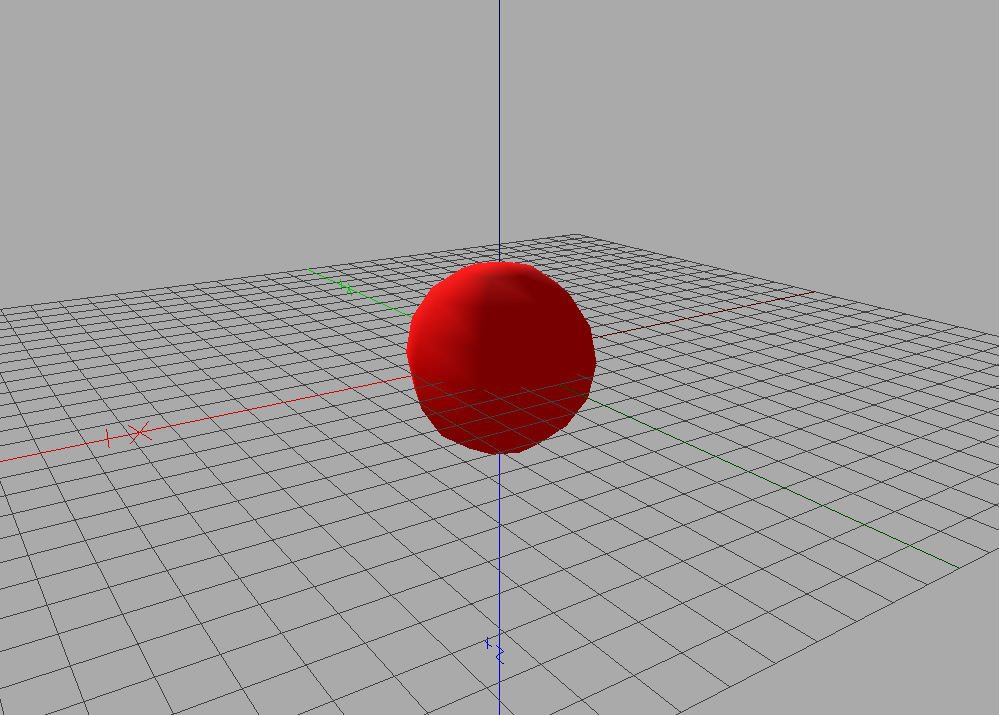
Create a shape with the previous sphere and associate a red material to it.
 { width=”40%”, align=”center” }
Hint: Use Shape and Material.
Transformation#
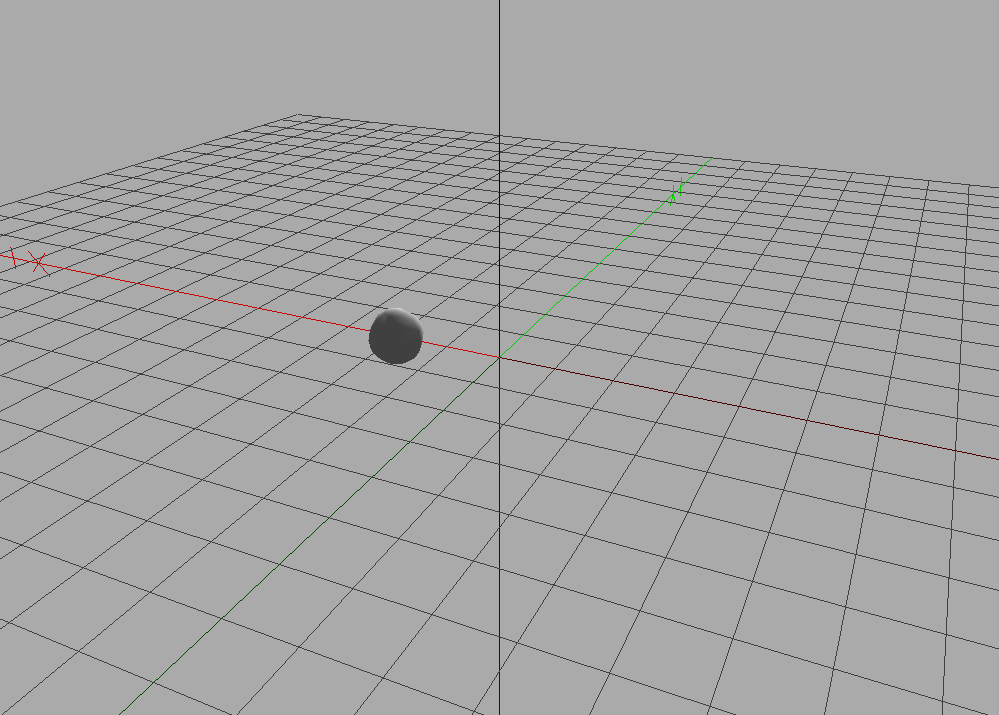
Create a Sphere centered at point (-2,0,0).
 { width=”40%”, align=”center” }
Hint: Use the help on Translated.
Scene#
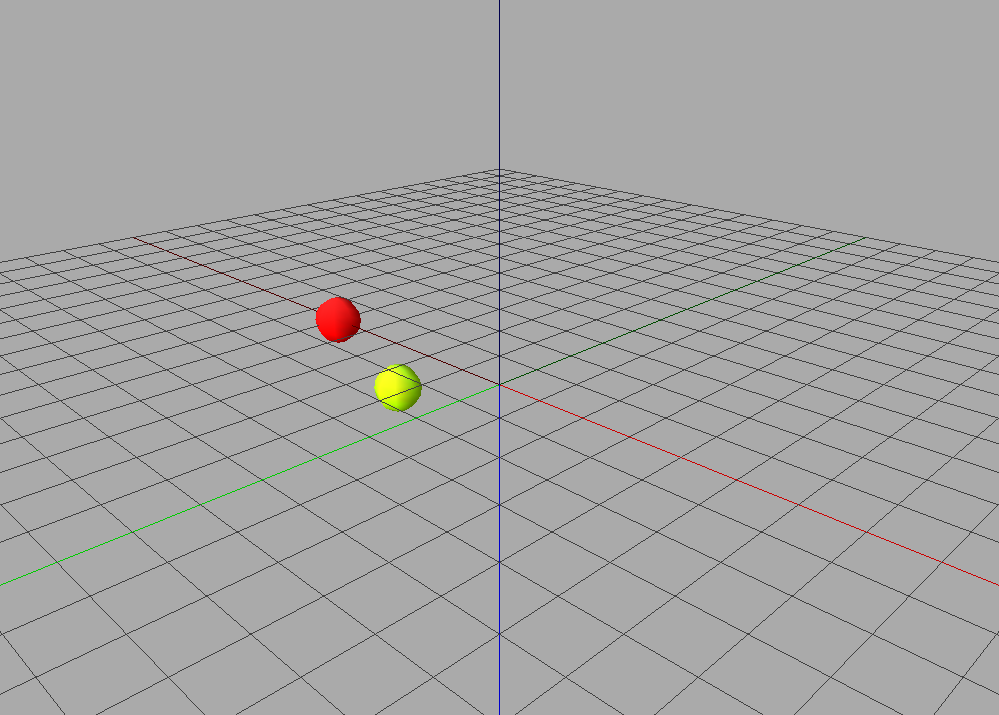
Display a scene with two spheres, one red and one yellow, positioned respectively at (-5,0,0) and (-2,0,1).
 { width=”40%”, align=”center” }
Hint: Use the help on Scene.
Instantiation#
In the previous scene, use the same sphere primitive for the translations. Change the radius of the sphere and observe the effect on the scene.
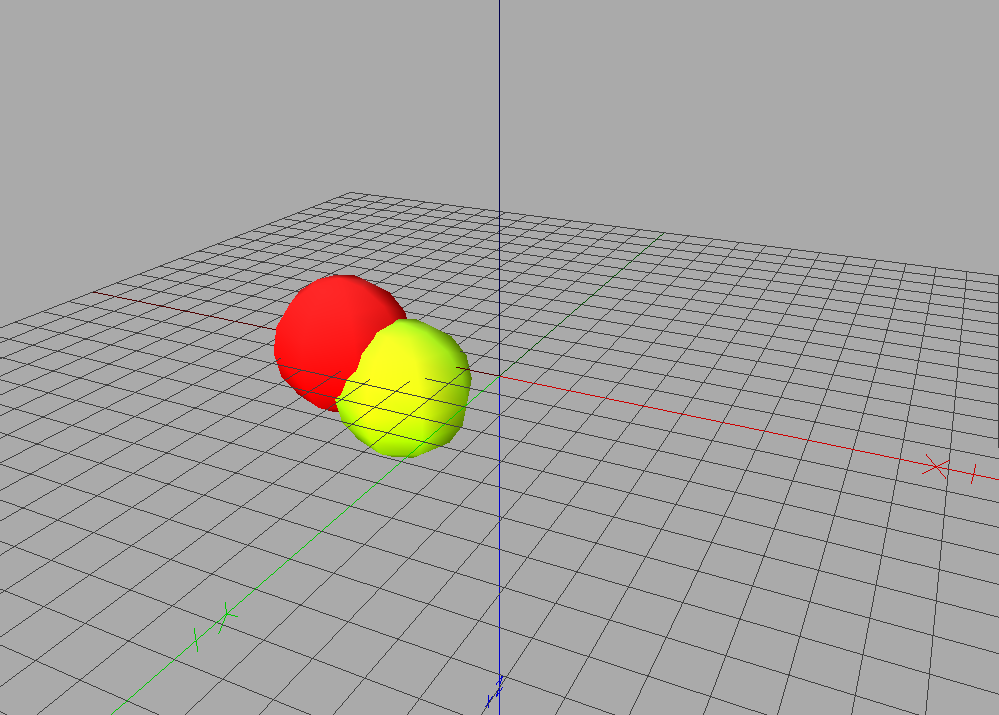 { width=”40%”, align=”center” }
Mesh#
Create a square with
QuadSet.Add different colors to the vertices of the square.
Create a cube with
QuadSetand different colors for each face.Create a cube with
QuadSetand a different color for each point of each face.
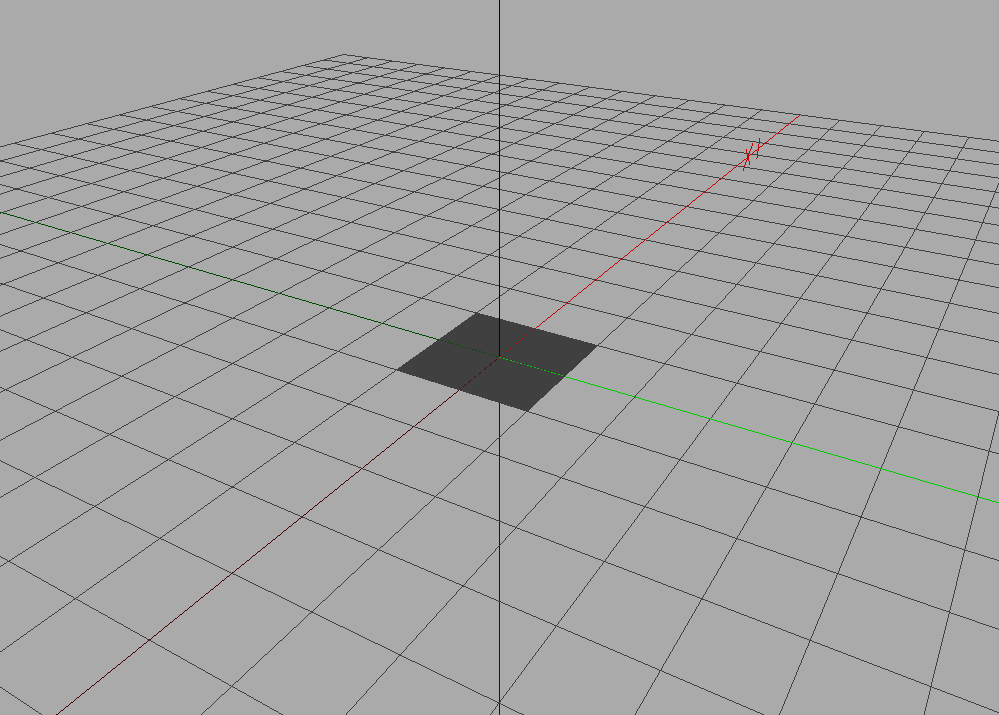 { width=”40%” }
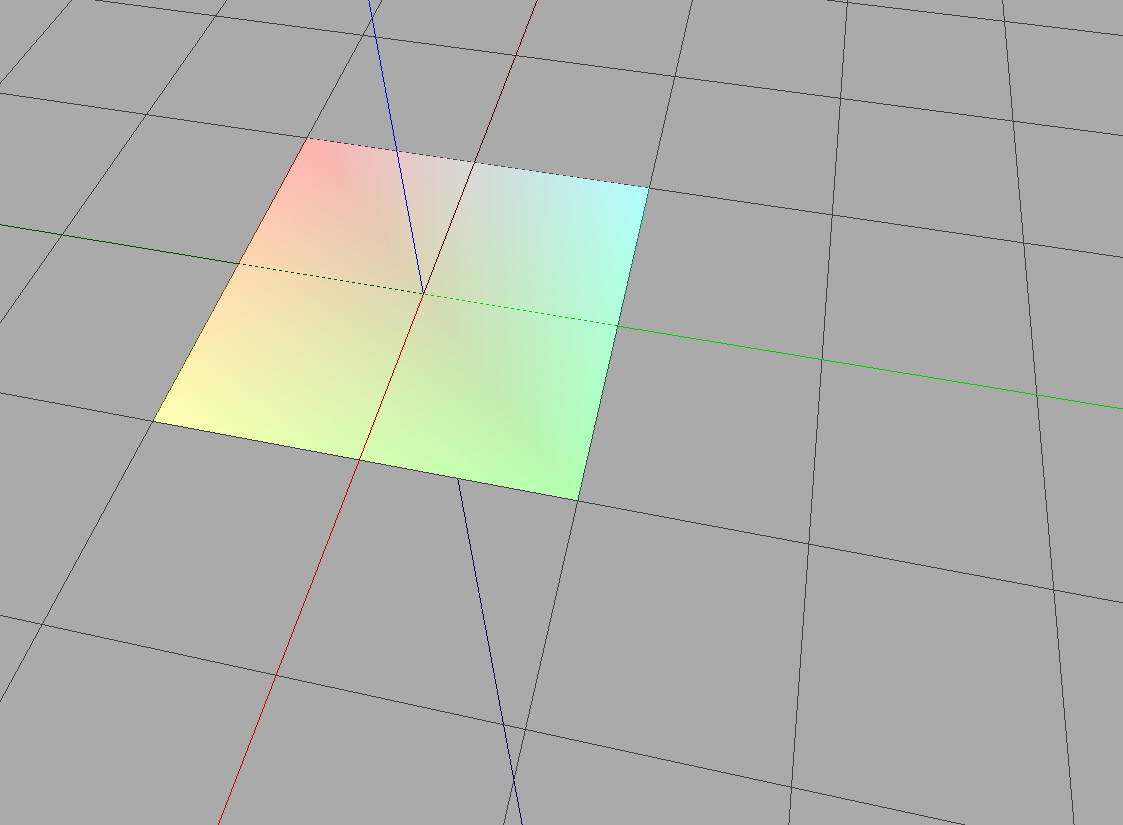 { width=”40%” }
 { width=”40%” }
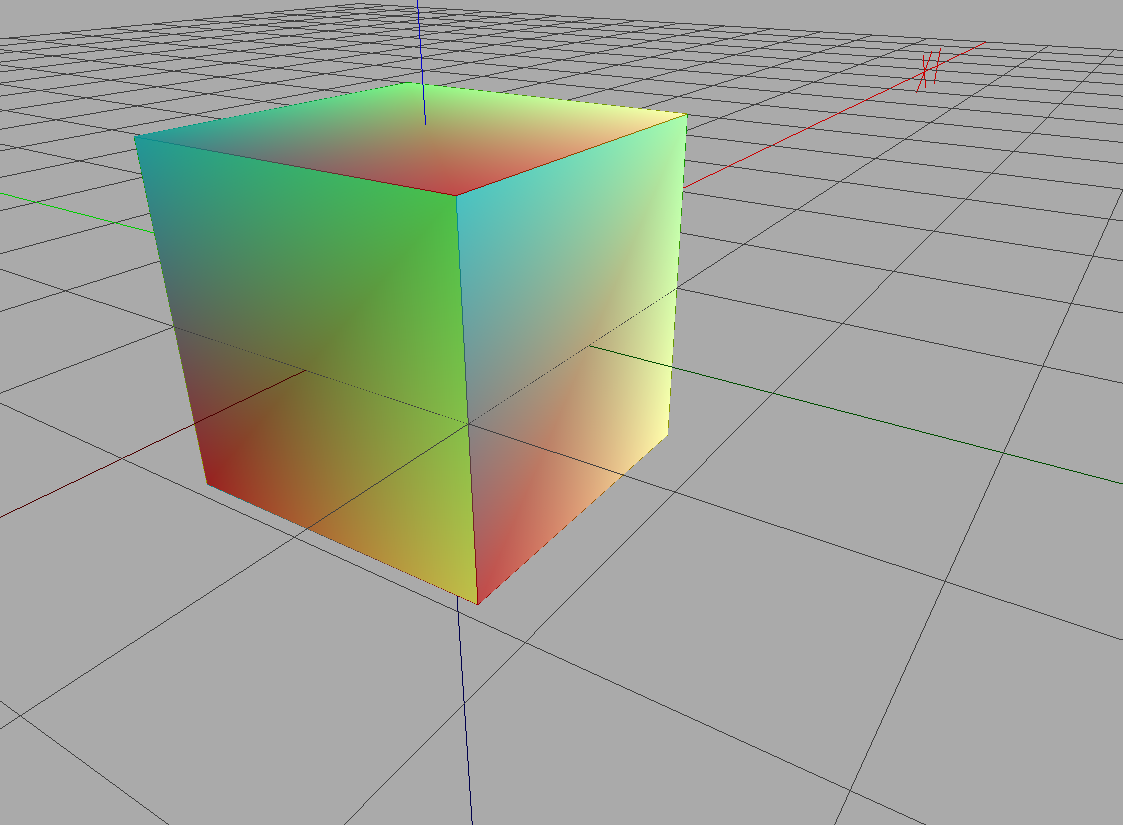 { width=”40%” }
Texture and Billboard#
Add texture coordinates to the vertices of the square to display an image:
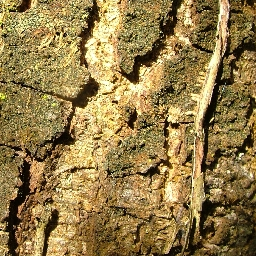 { width=”20%”, align=”center” }
Hint: Create a
Shapewith your square as geometry andImageTextureas material.Use transparency to display a leaf on a square:
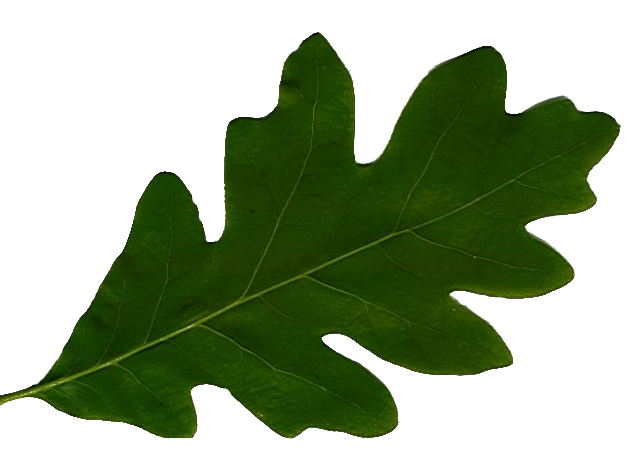 { width=”20%”, align=”center” }
Display the wood texture on the square but only part of the image (half width/height starting from 1/4,1/4).
Always display the same image on the 6 faces of a cube.
Create a cross with 5 squares and display a part of the texture on each square.
Results:
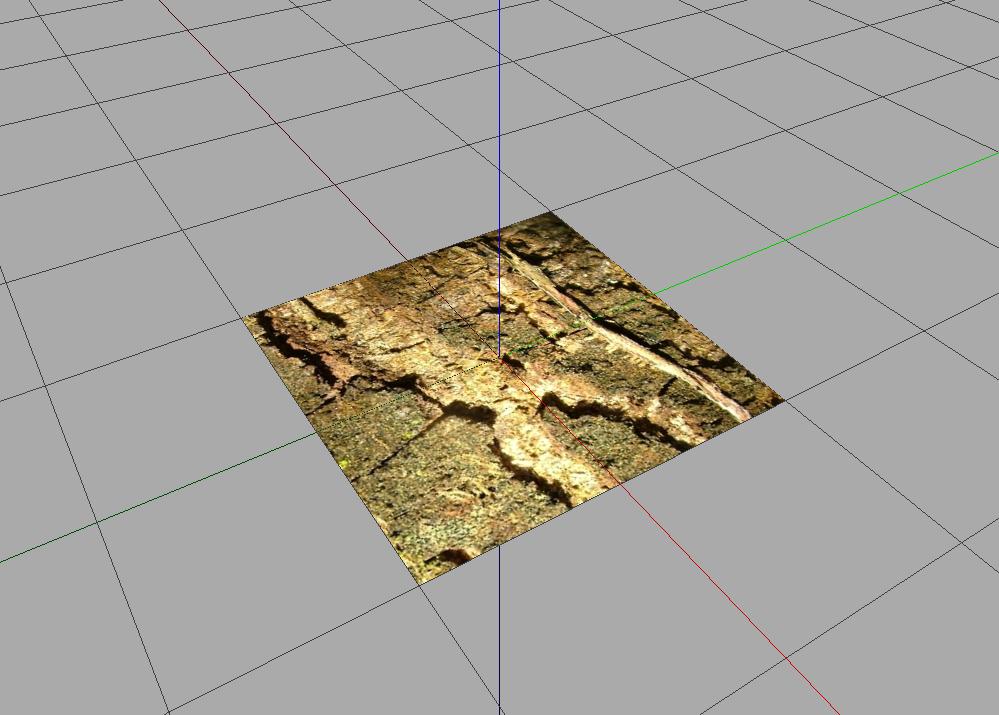 { width=”40%” }
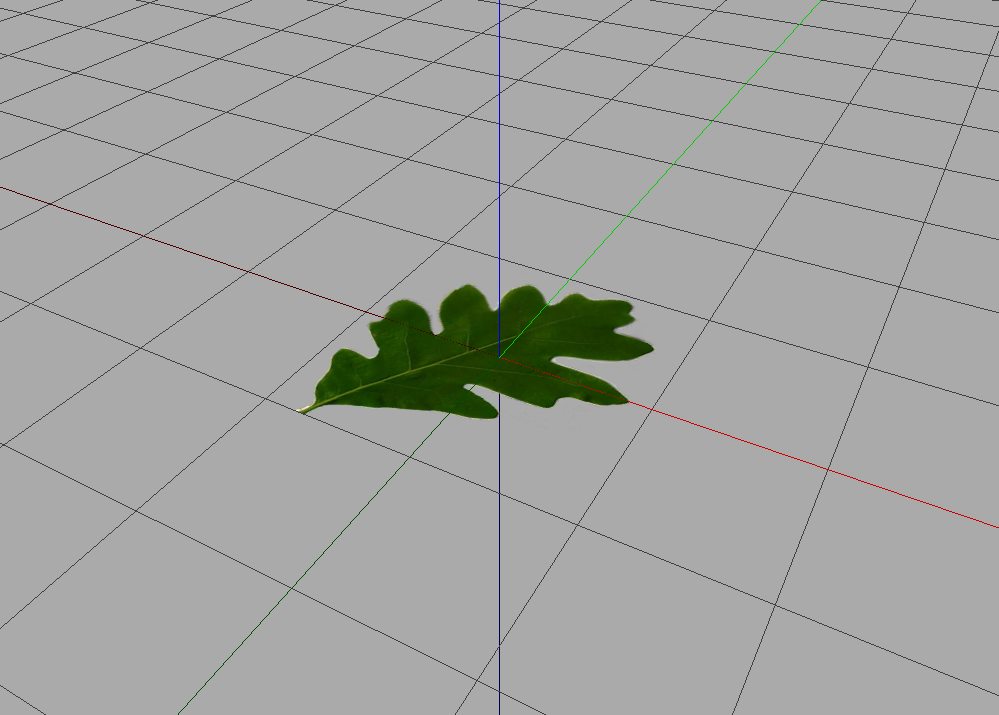 { width=”40%” }
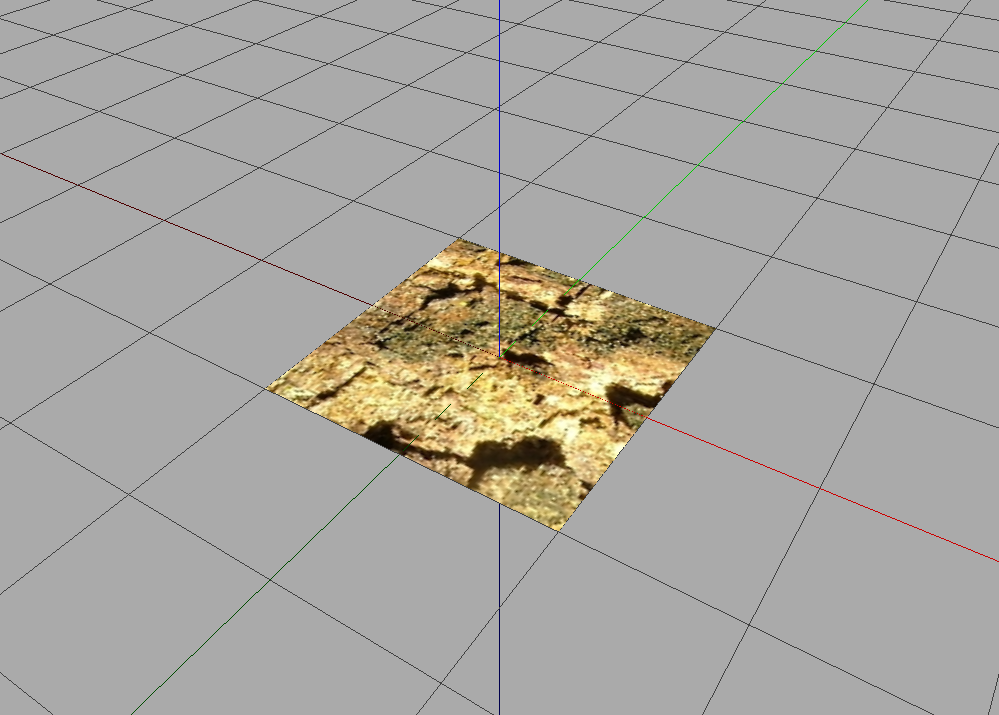 { width=”40%” }
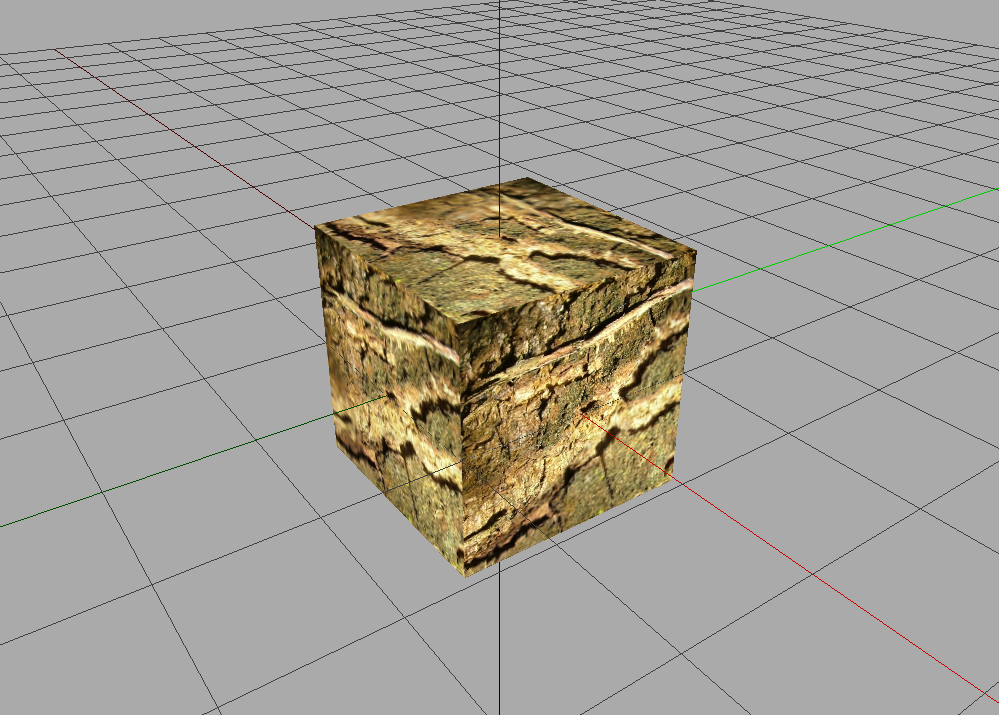 { width=”40%” }
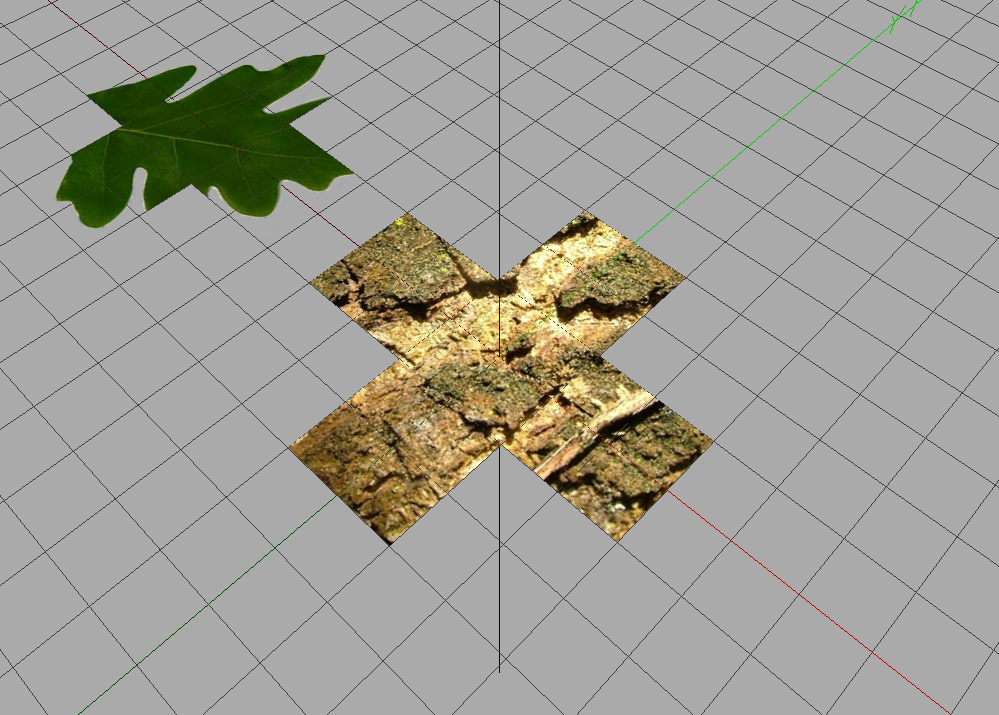 { width=”40%” }
Discretization#
Create a
QuadSetcorresponding to a cylinder.Create a
TriangleSetcorresponding to a cylinder.(Difficult) Create a
Sphereas a truncated icosahedron.
Results:
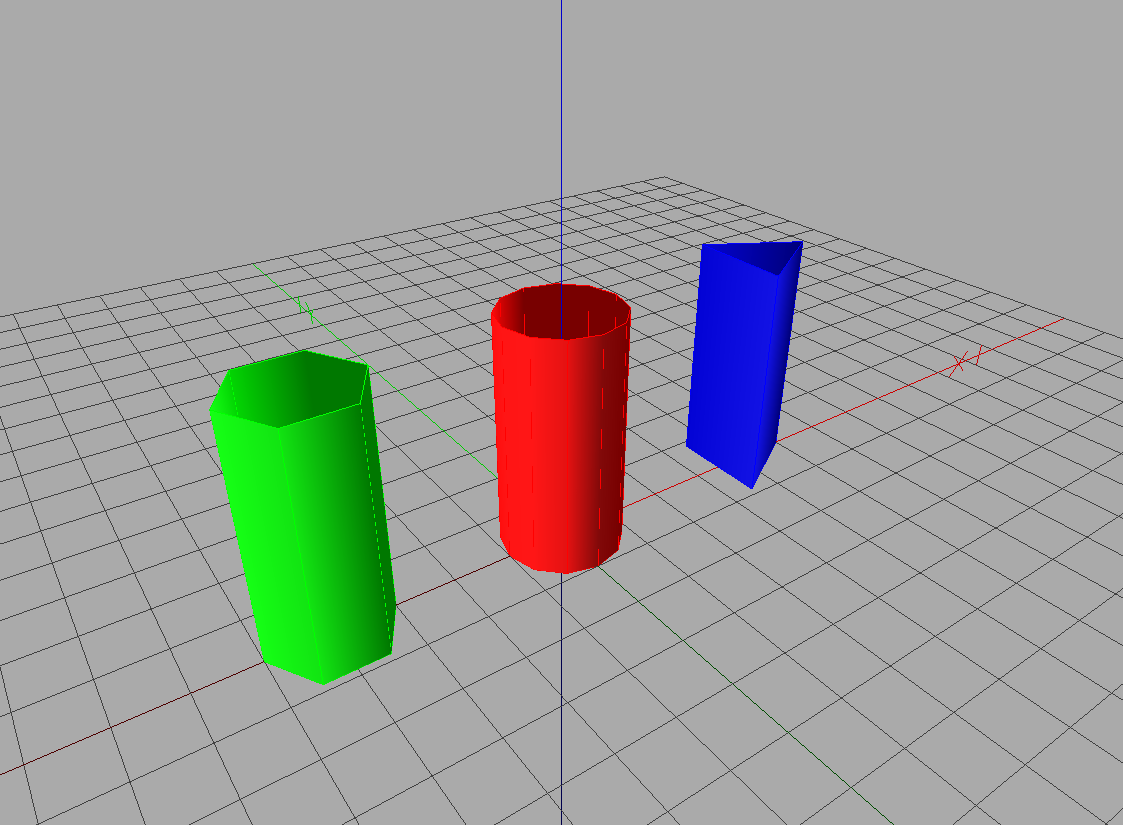 { width=”40%” }
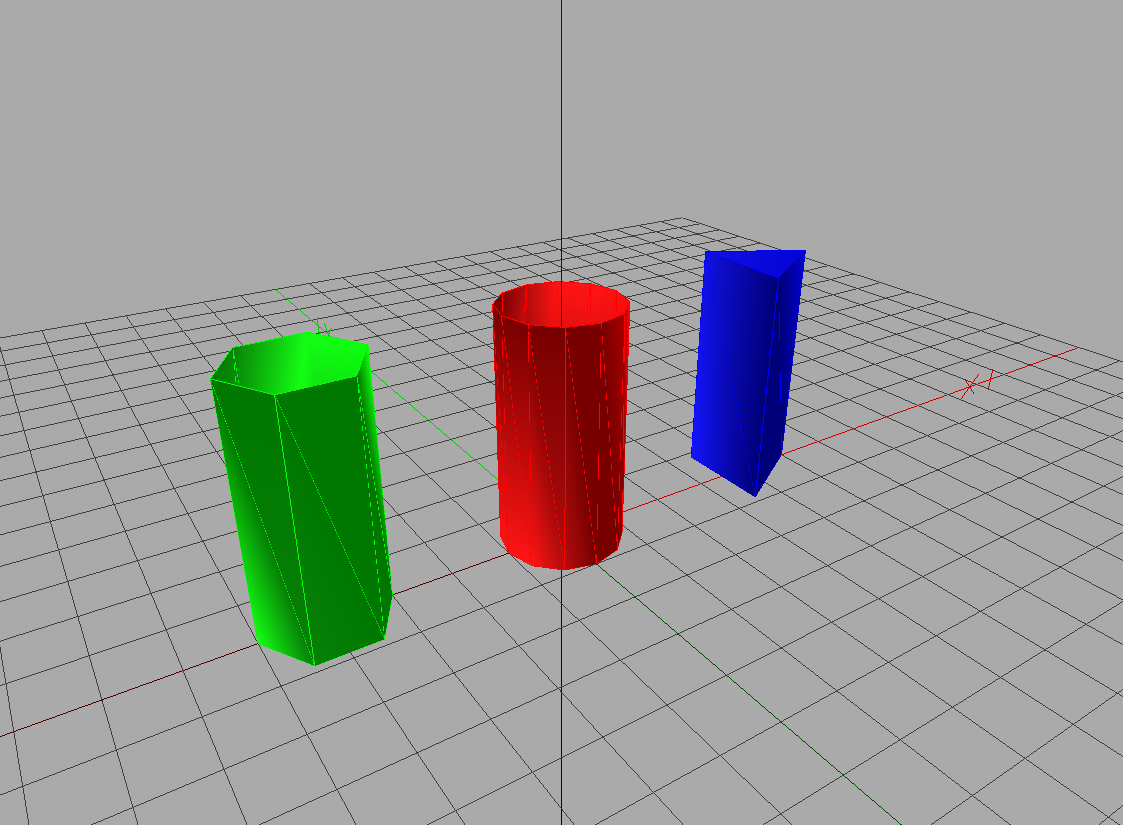 { width=”40%” }
Hulls#
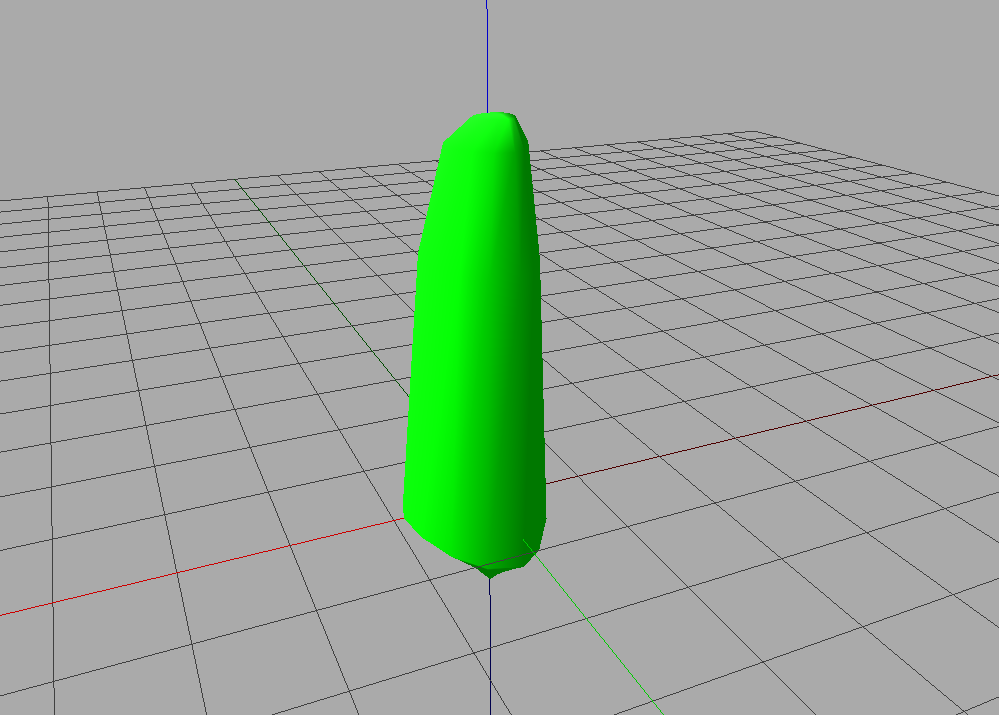
Create a python function to display a growing
AsymmetricHull.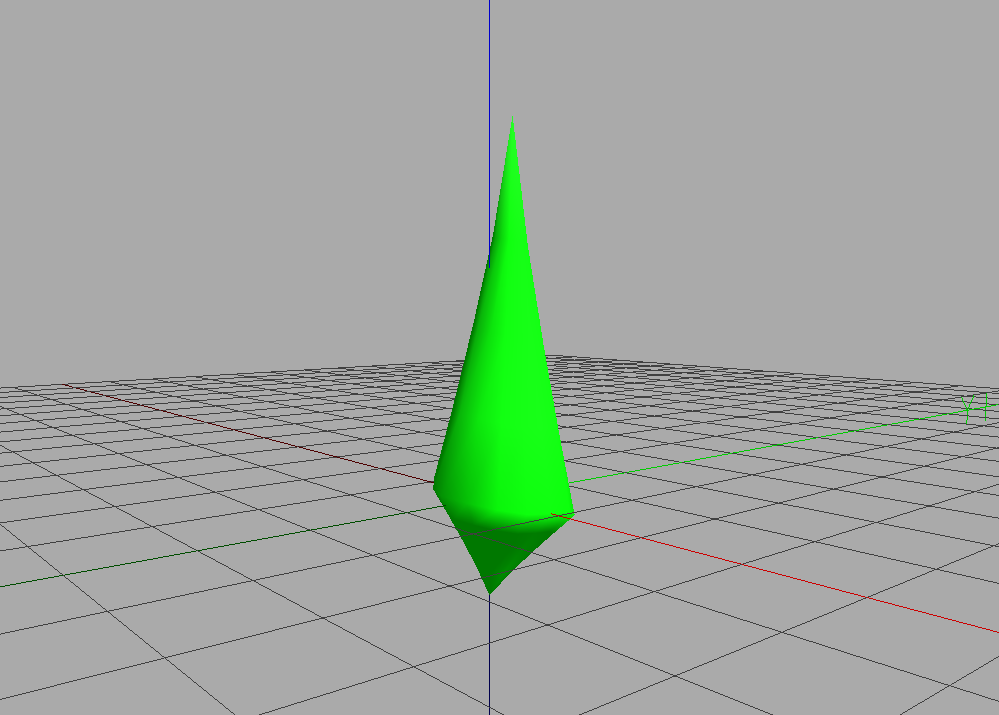 { width=”40%” }
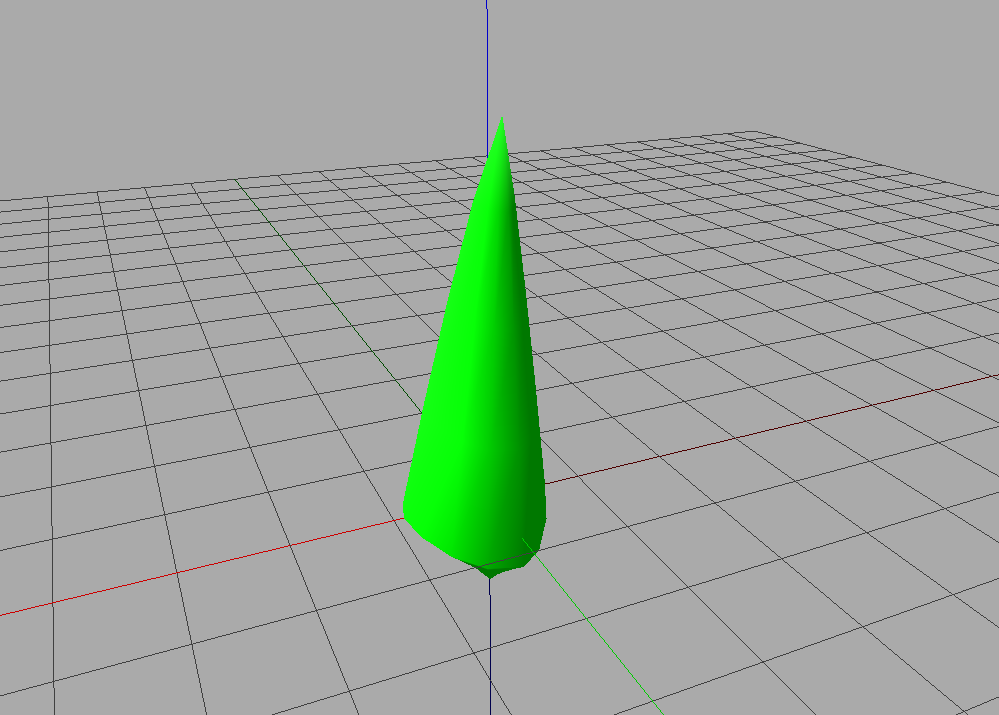 { width=”40%” }
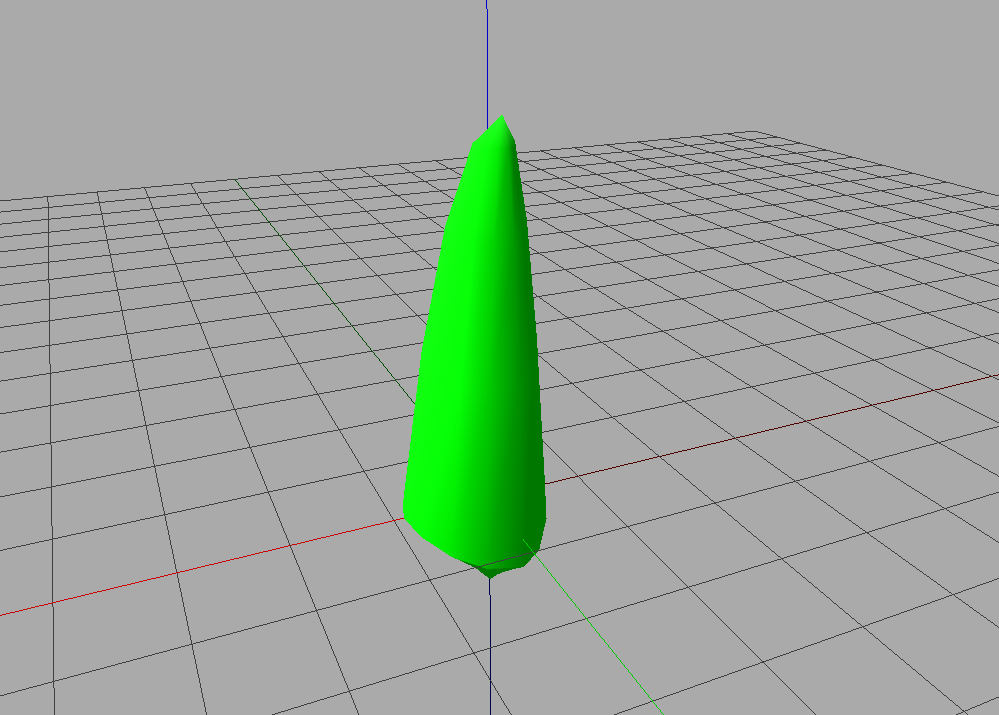 { width=”40%” }
 { width=”40%” }
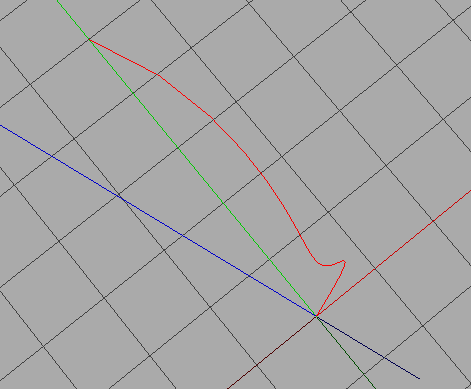
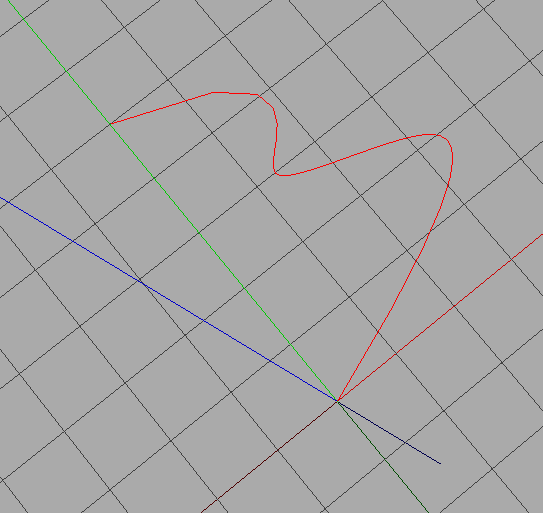
Create profiles with positive x coordinates using
Polyline2D,BezierCurve2D,NurbsCurve2D.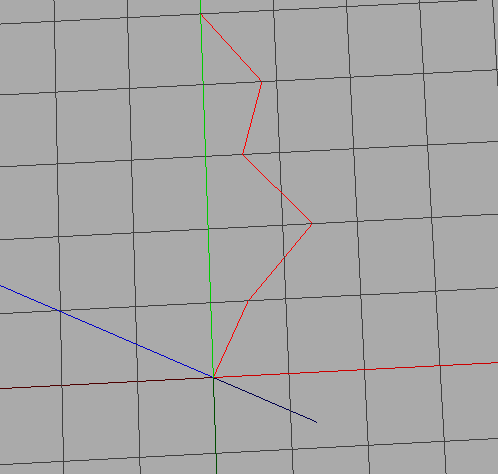 { width=”40%” }
 { width=”40%” }
 { width=”40%” }
Create a
Swunghull with the previous profiles at different angles between [0;2*pi].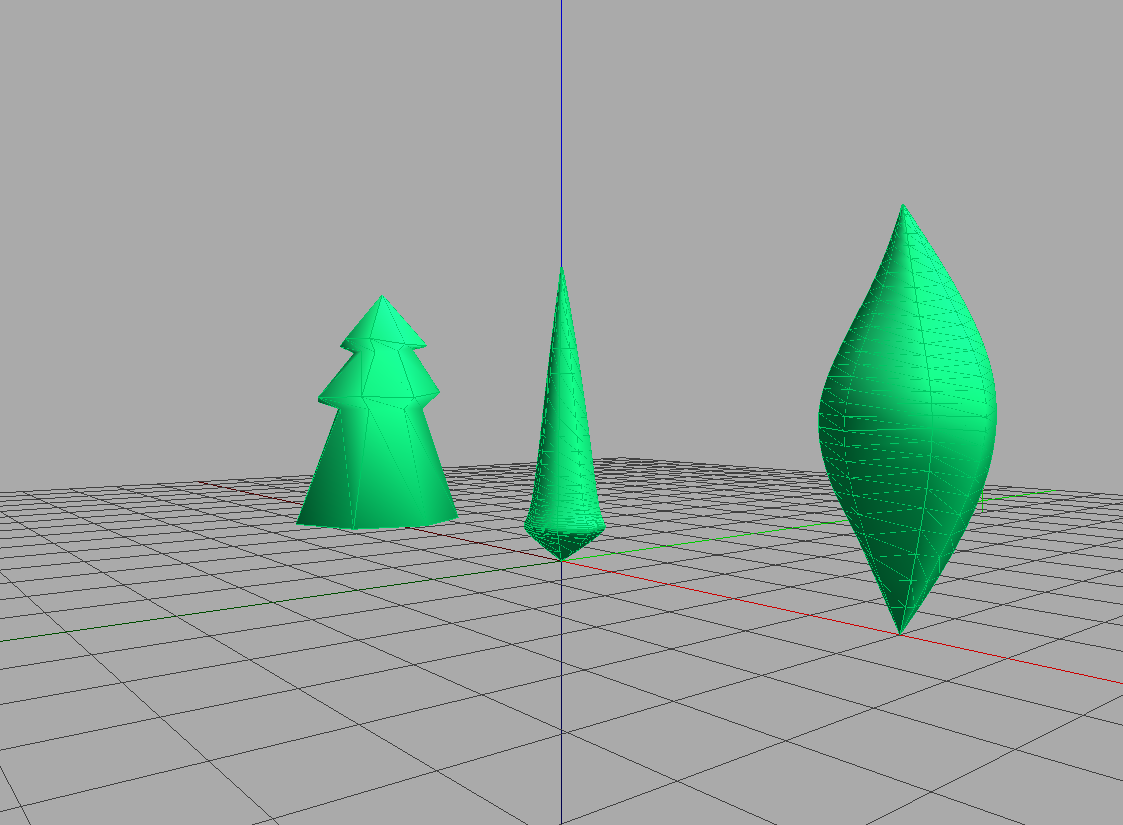 { width=”40%”, align=”center” }
Create a circle with
Polyline2D.Circleand a closed profile representing the silhouette of a tree.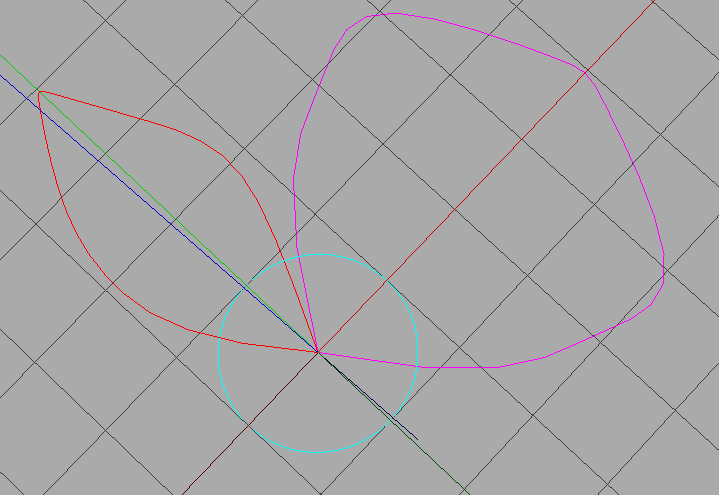 { width=”40%”, align=”center” }
With these two profiles, create an
ExtrudedHullto obtain: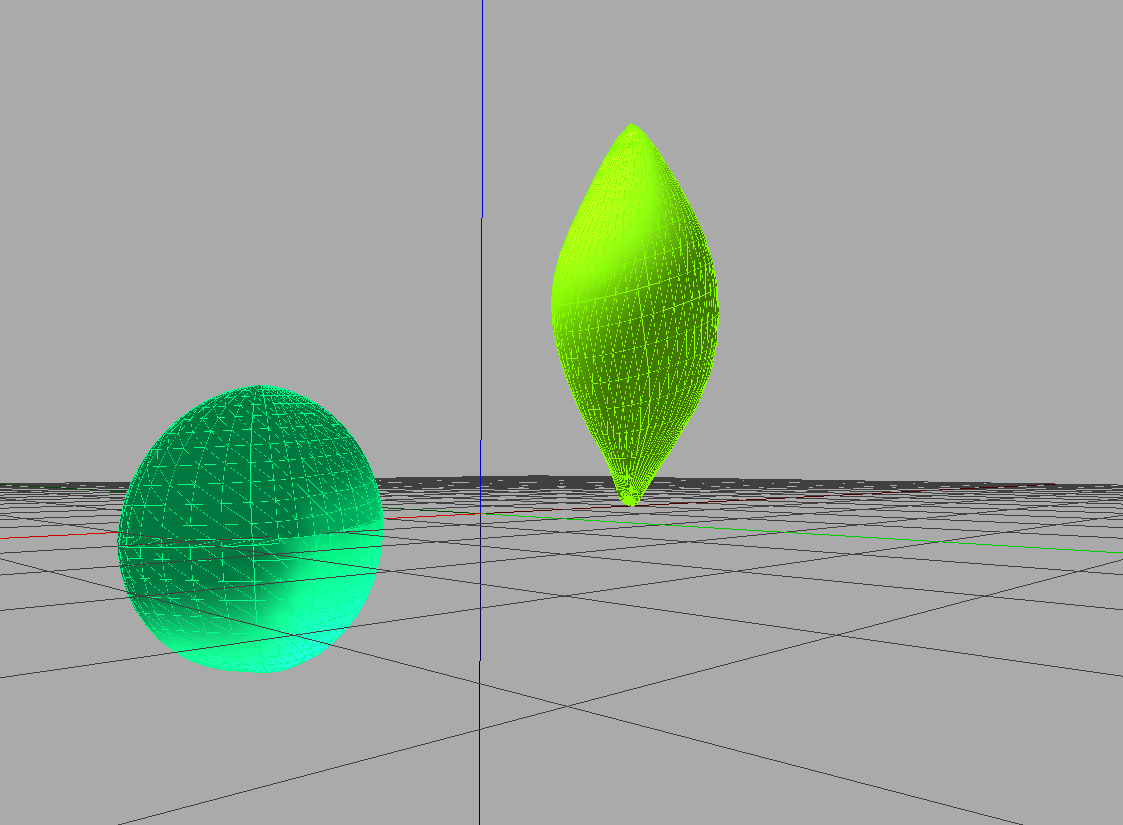 { width=”40%”, align=”center” }
Generalized Cylinder#
With a circle and a 3D line, create a branch with an Extrusion. Expected result:
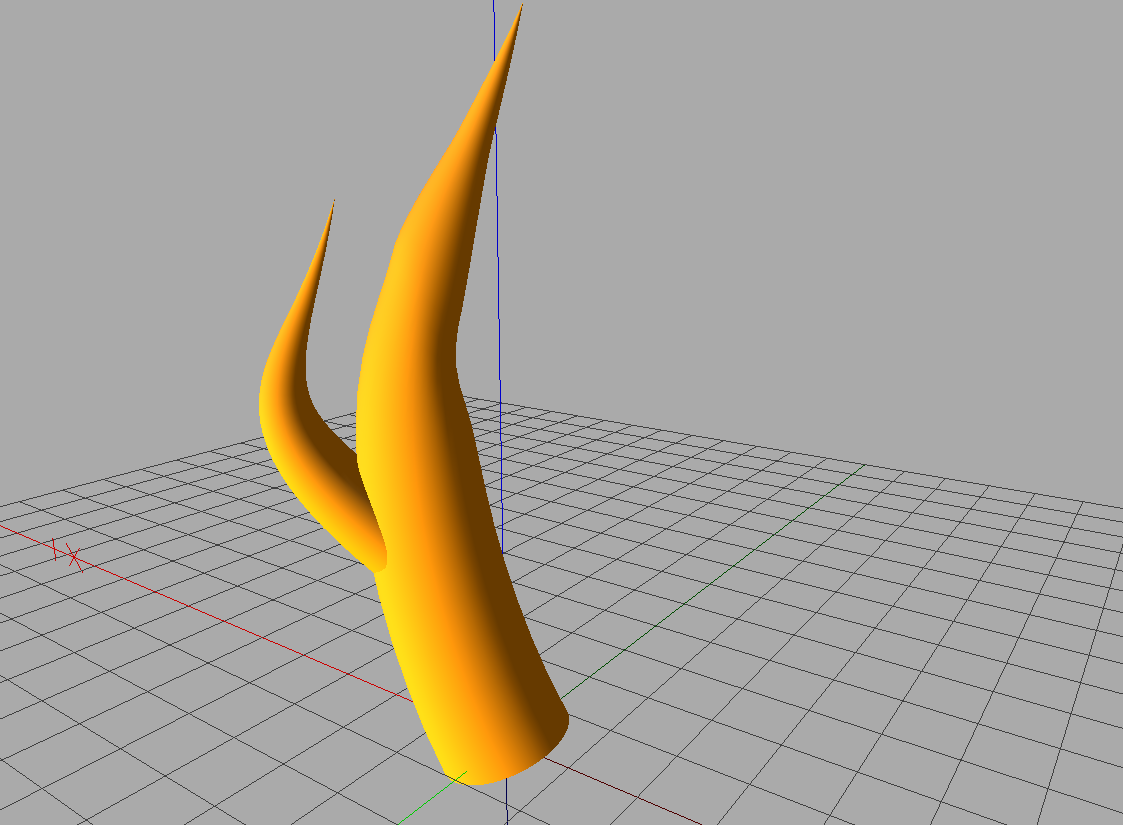 { width=”40%”, align=”center” }
Positioning Objects#
Create a 2-meter trunk with a cylinder and pairs of lateral leaves every 50 cm. Hint: Use
Translated,AxisRotated,EulerRotated, etc.Same thing with decreasing leaf sizes. Hint: Use
Scaled.Same thing with a trunk bent 30° in the middle.
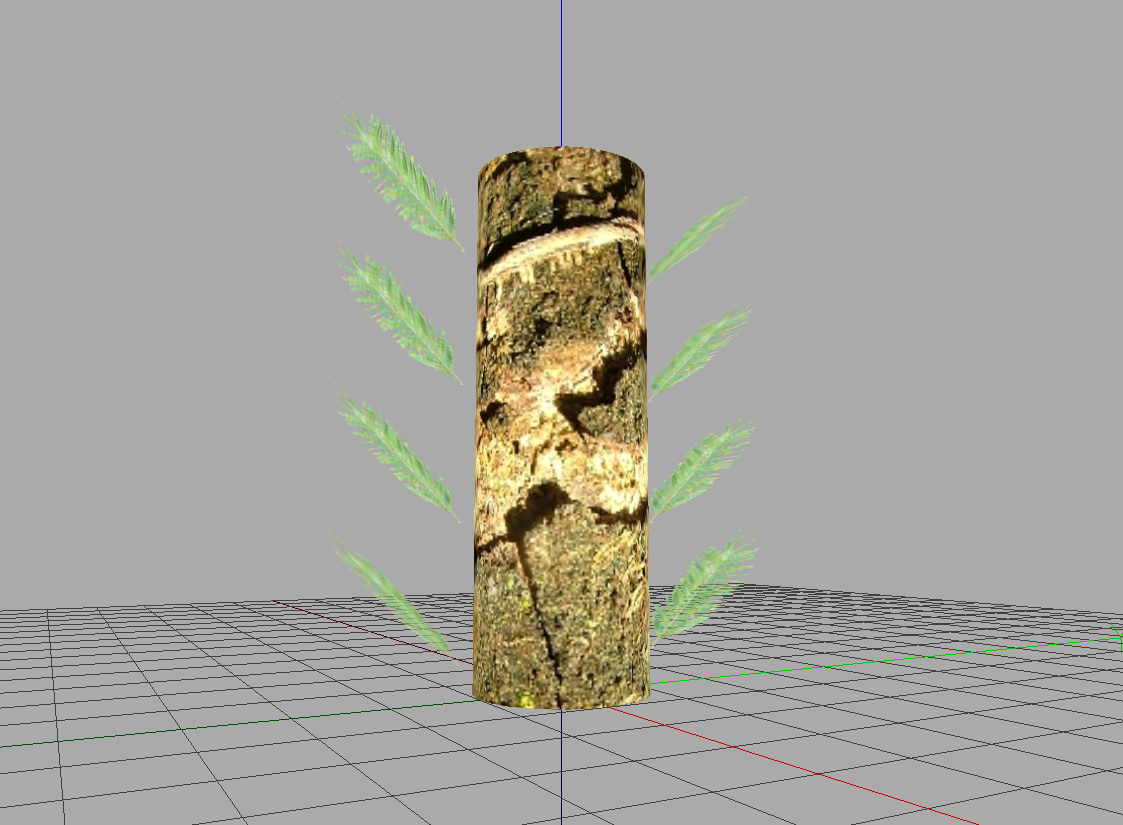 { width=”30%” }
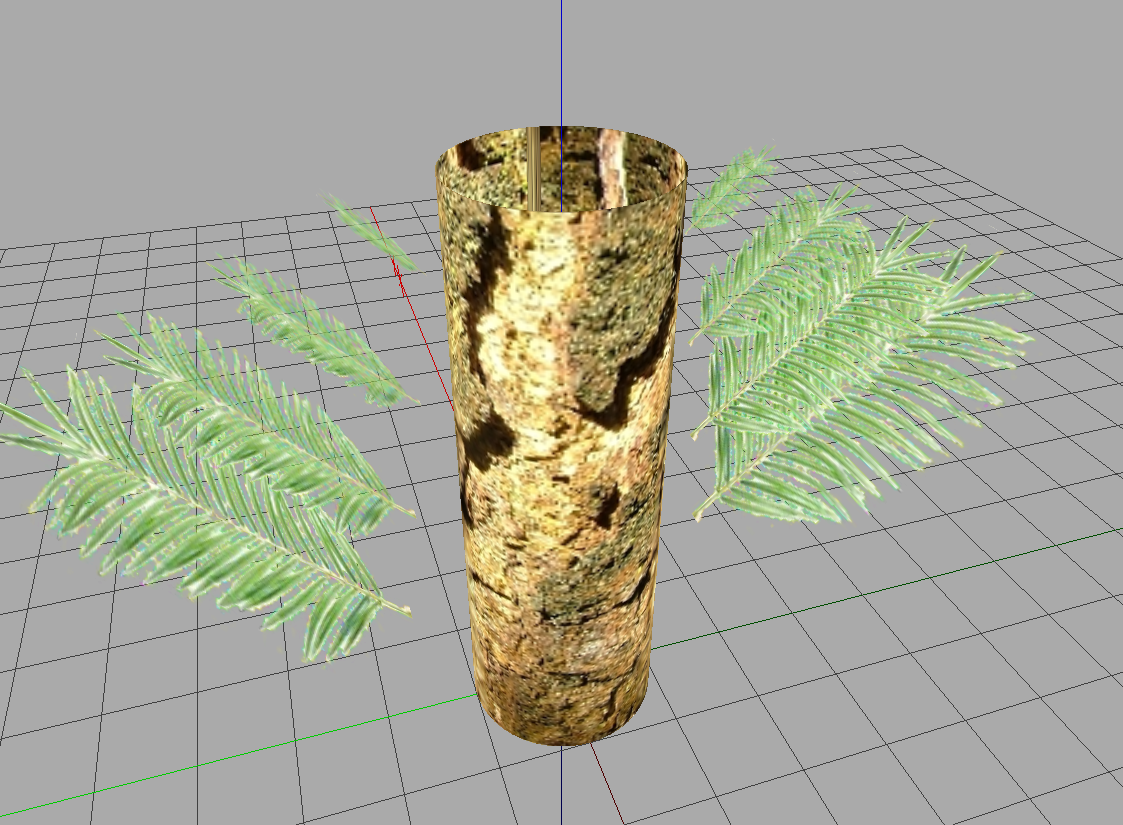 { width=”30%” }
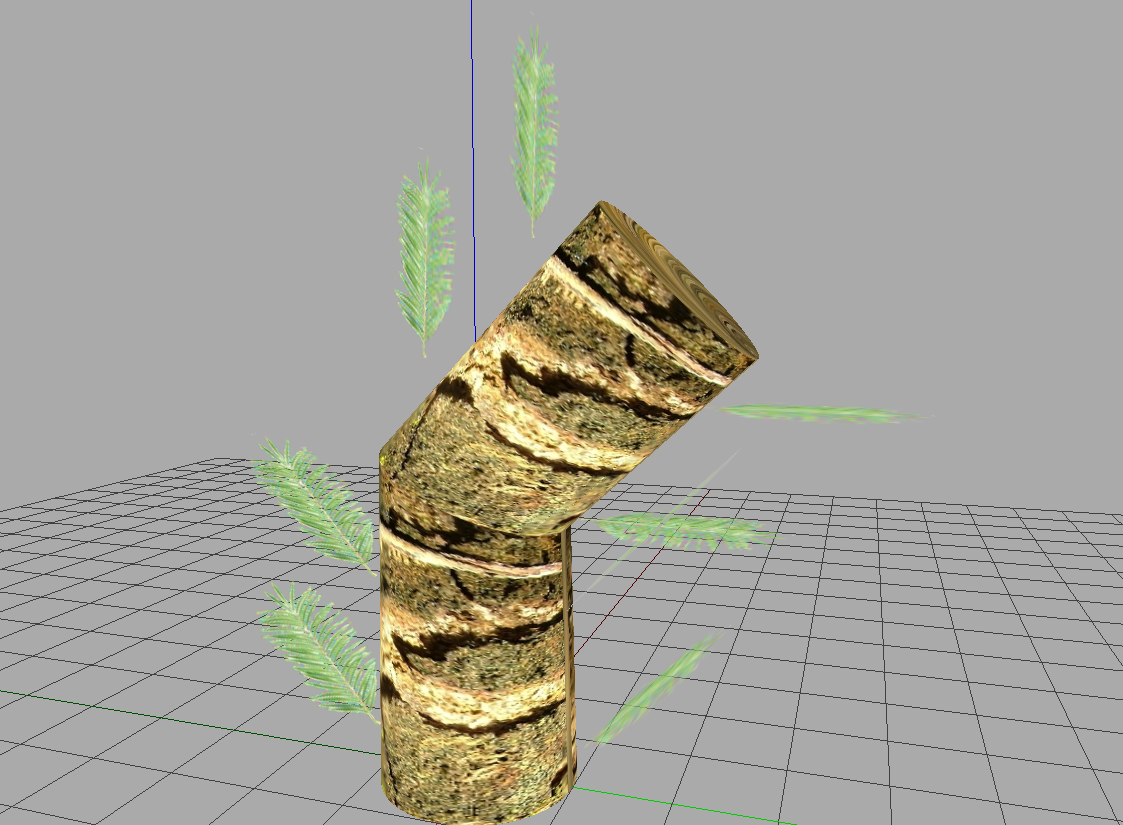 { width=”30%” }
Hint: Pay attention to the order of transformations!
Solutions#
Solution for Hello World#
Python script to get help on Box:
# solutions_python/box.py
The arguments for initializing a Box are the x, y and z scales. To create a sphere with radius 5:
# solutions_python/sphere_5.py
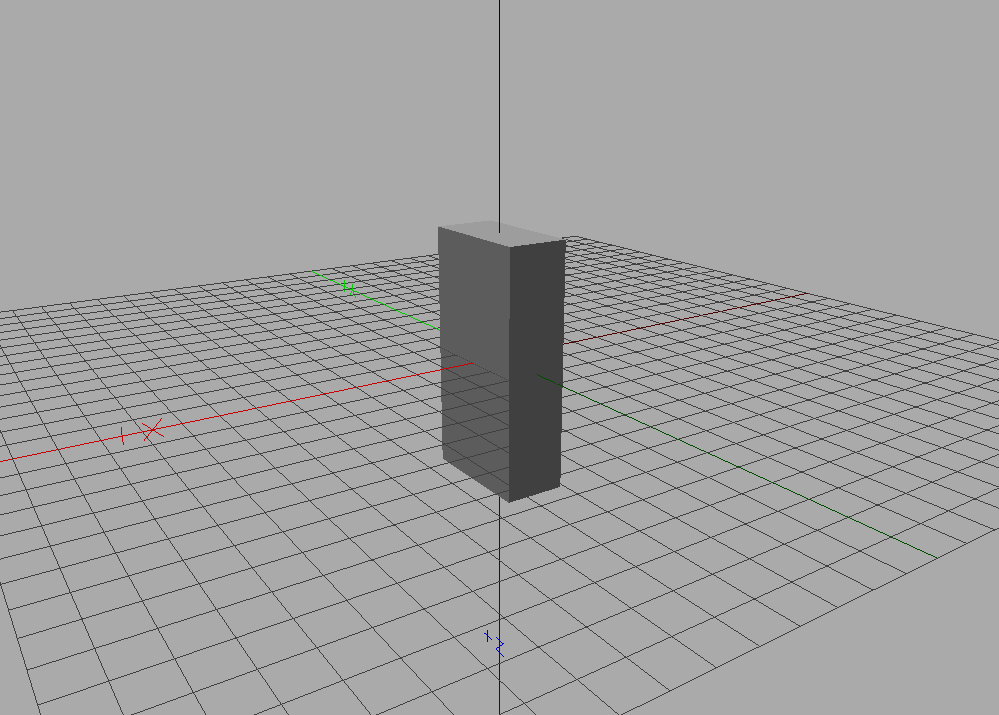 { width=”40%”, align=”center” }
{ width=”40%”, align=”center” }
{ width=”40%”, align=”center” }
Solution for Material#
To associate a red material to a sphere:
# solutions_python/material.py
{ width=”40%”, align=”center” }
Solution for Transformation#
To translate a sphere:
# solutions_python/transformation.py
{ width=”40%”, align=”center” }
Solution for Scene#
To create a scene with two different spheres:
# solutions_python/scene.py
{ width=”40%”, align=”center” }
Solution for Instantiation#
To use the same sphere primitive in the scene:
# solutions_python/scene2.py
{ width=”40%”, align=”center” }
Solution for Mesh#
Colored square:
# solutions_python/carre.py
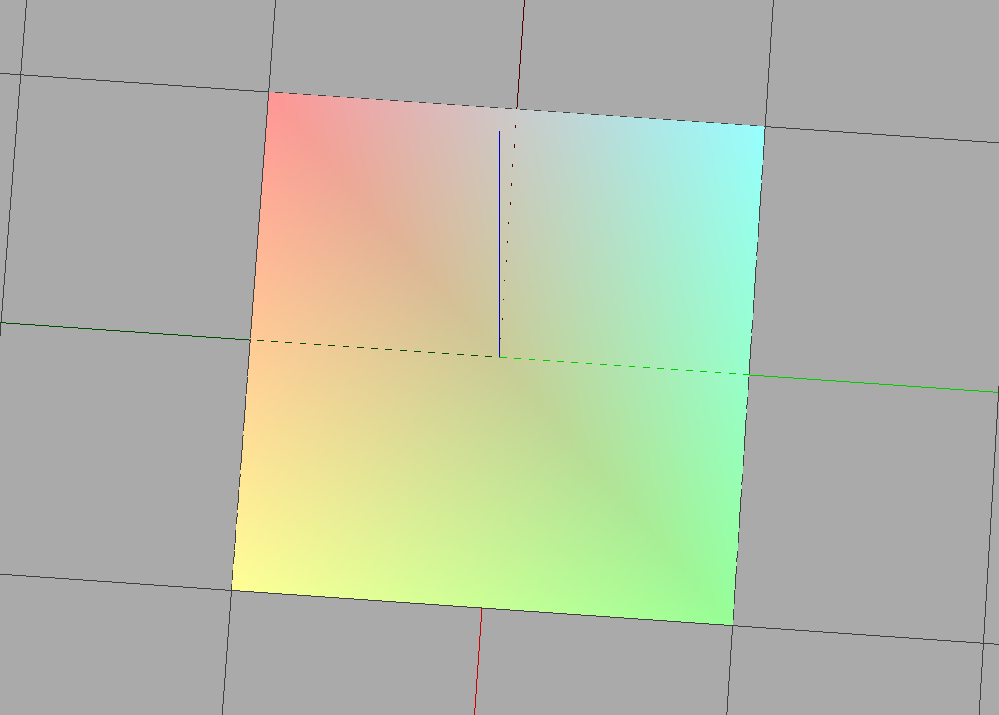 { width=”40%”, align=”center” }
Cube with color per face:
# solutions_python/cube.py
{ width=”40%”, align=”center” }
Cube with color per vertex:
# solutions_python/cube2.py
{ width=”40%”, align=”center” }
Solution for Texture and Billboard#
Textured square:
# solutions_python/square_tex.py
{ width=”40%”, align=”center” }
Textured square with alpha:
# solutions_python/square_tex2.py
{ width=”40%”, align=”center” }
Partially textured square:
# solutions_python/square_tex3.py
{ width=”40%”, align=”center” }
Textured cube:
# solutions_python/cube_tex.py
{ width=”40%”, align=”center” }
Textured cross:
# solutions_python/cross_tex.py
{ width=”40%”, align=”center” }
Solution for Discretization#
Cylinder with QuadSet:
# solutions_python/cyl_quadset.py
{ width=”40%”, align=”center” }
Cylinder with TriangleSet:
# solutions_python/cyl_triangleset.py
{ width=”40%”, align=”center” }
Solution for Hulls#
Growing hulls:
# solutions_python/asymmetric_hulls.py
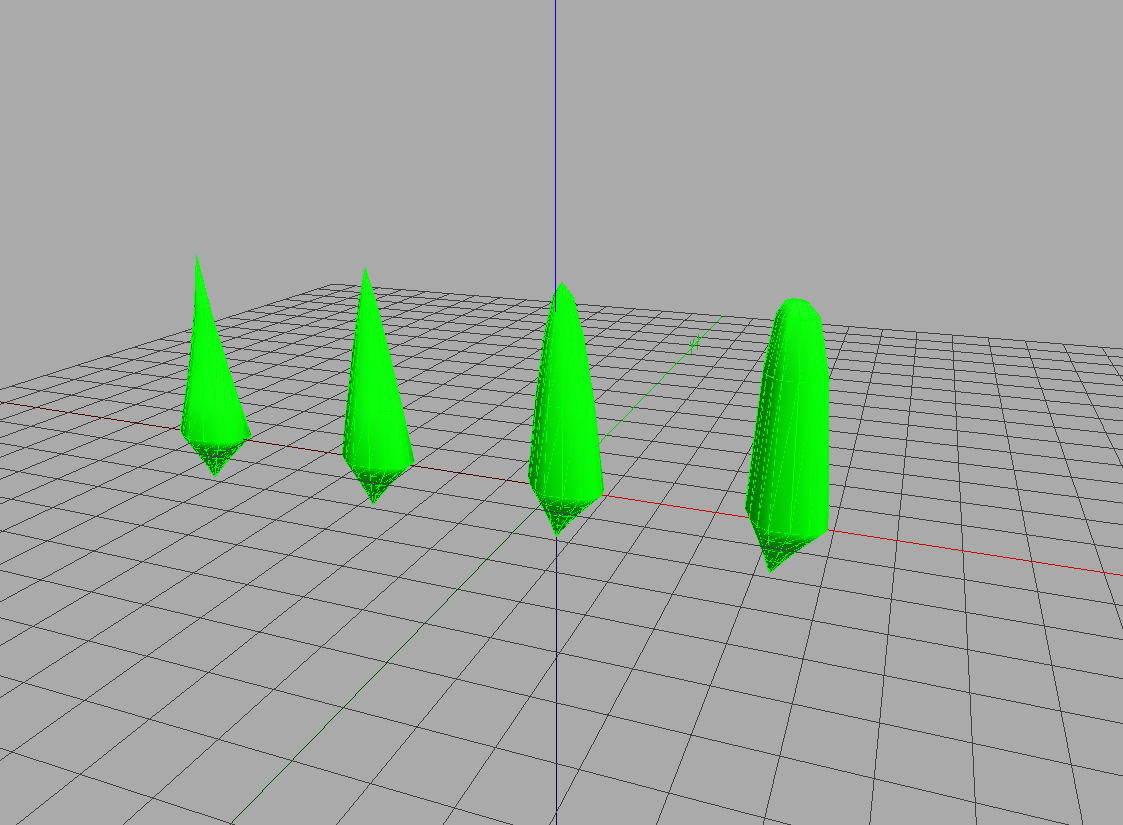 { width=”40%”, align=”center” }
Swung hulls:
# solutions_python/hull_profil.py
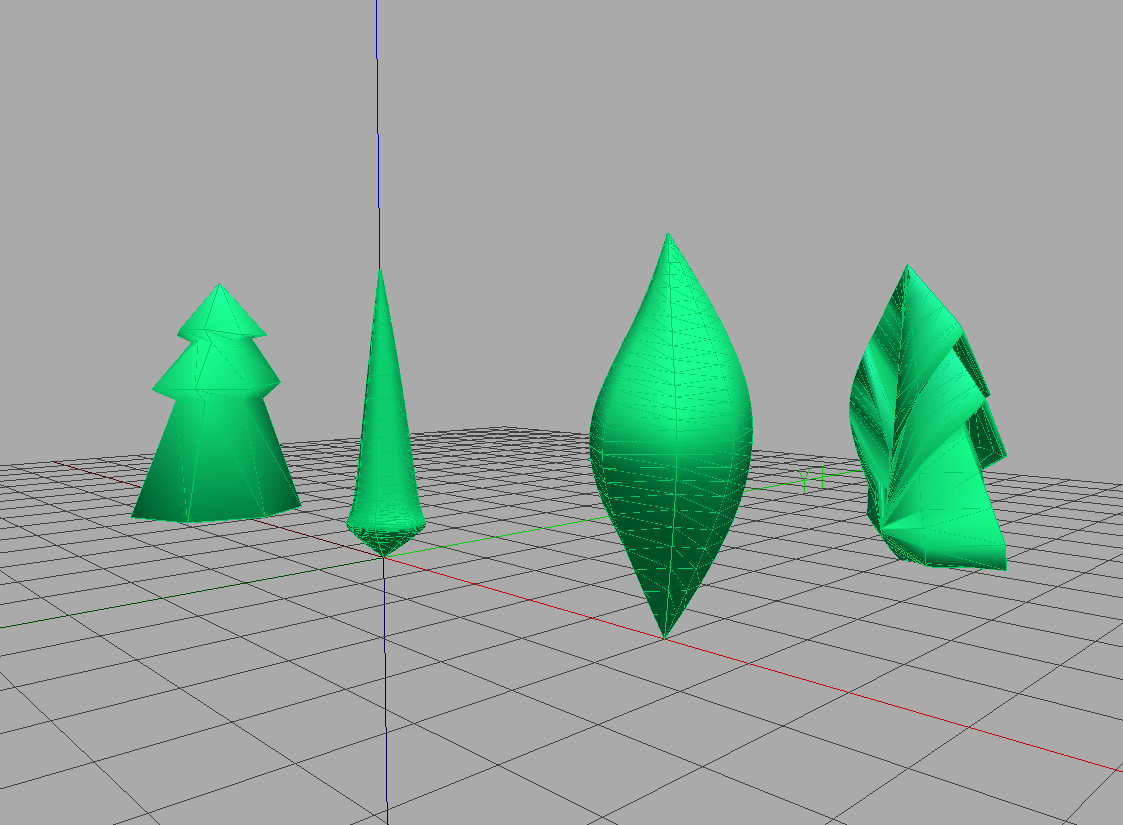 { width=”40%”, align=”center” }
Extruded hulls:
# solutions_python/hull_extruded.py
{ width=”40%”, align=”center” }
Solution for Generalized Cylinder#
Extruded branches:
# solutions_python/branches.py
{ width=”40%”, align=”center” }
Solution for Positioning Objects#
Tree with same-sized leaves:
# solutions_python/tree1.py
{ width=”40%”, align=”center” }
Tree with decreasing leaf sizes:
# solutions_python/tree2.py
{ width=”40%”, align=”center” }
Tree with bent trunk:
# solutions_python/tree3.py
{ width=”40%”, align=”center” }